How to Share an MP4 File
A practical guide to sharing MP4s through email and chat without failed uploads, quality loss, or confusing feedback—plus when a share link beats attachments.

How to share an MP4 file usually comes down to one constraint: most email and chat tools were not built for large media. If you try to attach a big MP4, the upload may fail, the recipient may not be able to download it, or the app may compress it. This guide shows when an attachment is fine—and when you should switch to a share link.
What “sharing an MP4” means (attachment vs link)
When someone asks you to “share the MP4,” they typically mean one of these:
Send an attachment: Best for small clips or internal notes when quality and longevity do not matter.
Send a link to the file: Best for reliable delivery, control (permissions/expiry), and large files.
Send a review link: Best when you need feedback tied to timecode, drawings on frames, and explicit approvals.
Why MP4 attachments fail (size limits in email and chat)
Attachments fail for a few repeatable reasons:
Hard size limits: Email and chat tools often cap attachment sizes, especially for external recipients.
Upload instability: Large MP4 uploads can time out on spotty connections.
Recipient friction: Downloads may require logins, permissions, or enough device storage.
If you care about “it opens first try,” treat attachments as a convenience and links as the default for real delivery.
Best way to share an MP4 in Slack / Teams / email (practical flow)
This flow works in almost every team:
Decide what the recipient needs: watch only, download the MP4, or leave feedback.
Pick the right share format: attachment (small), file link (delivery), or review link (feedback + approvals).
Set access up front: link-only vs invite-only, download allowed or not, and any expiration window.
Test like a recipient: open the link in an incognito window to confirm it works without your login.
If you are switching from attachments to links, keep the message simple: one URL, one sentence on what you want back (“watch + approve” or “leave notes by timecode”).
Avoid quality loss (compression, re-encoding, and “optimized uploads”)
Quality problems usually come from accidental “helpful” processing:
Auto-compression: some chat apps optimize media to save bandwidth.
Re-encoding: uploads can be reprocessed into a different bitrate or codec.
Wrong file for the job: send a lightweight preview for quick review, but keep your master export separate and unmodified.
When quality matters, prefer a link to the original file (or a deliberate review export), not a pasted-in “inline video” upload.
Share securely (permissions, expiry, passwords)
Permissions: invite-only reduces accidental forwarding; link-only is simpler but easier to reshared.
Expiry: expiring links reduce risk, but can break later approvals—set a window that fits your timeline.
Passwords and download controls: use them when the content is sensitive.
Try sharing an MP4 with a review-ready link
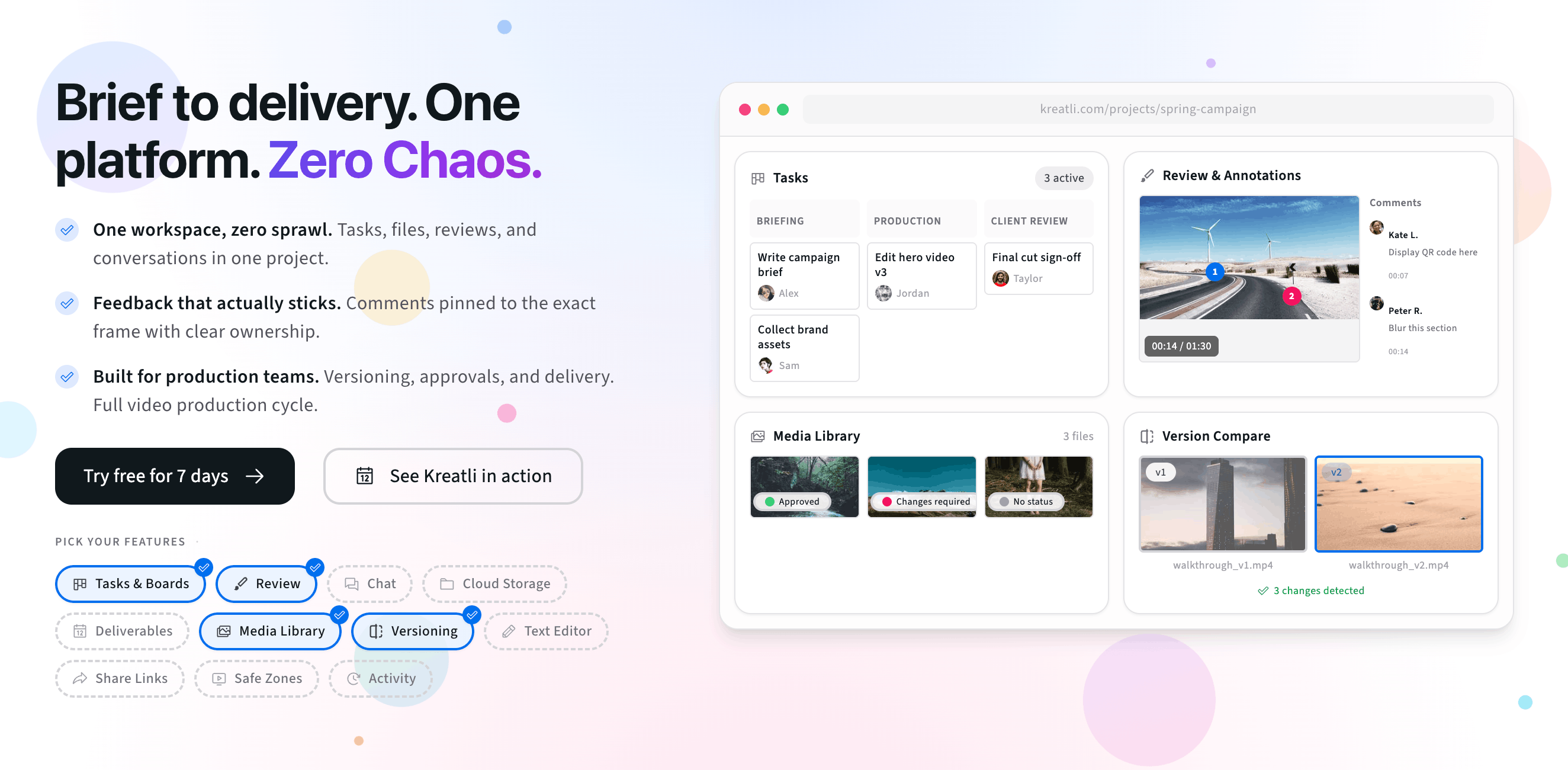
If the MP4 is being shared for review, a link built for feedback is usually faster than email threads. A review-ready link keeps comments tied to timecode and versions—similar to our free video link generator workflow: share one URL, collect frame-accurate notes, and keep approvals tied to the file.
The interactive preview below mirrors a simple “share by link” flow. When you are ready, start a 7-day trial or book a demo.
Free tools, guides, and platform features
Free tools that pair with sharing and review, plus related guides and platform features to explore next.
Free tools for sharing MP4s
Try tools that complement link-based sharing, review, and approvals.
Video Feedback Tool — Give frame-accurate feedback on videos with comments, annotations, and markup. Share review links with clients; recipients do not need a Kreatli account.
Video Reviewer — Review videos online with frame-accurate comments, visual annotations, and approval workflows. Share with clients; recipients do not need a Kreatli account.
Video Manager — Organize, store, and track video assets with version control and client share links. Manage feedback and approvals in one workspace.
Data Transfer Calculator — Calculate how long it takes to upload or download large files. Perfect for video editors and post-production teams.
More guides on sharing and delivery
Related reads on sharing workflows, links, and review-ready delivery.
How to Generate a Video Link for Free: Share, Watch, and Review-Ready Links
7 Ways to Share Large Video Files with Clients for Review and Approval
More resources
Capabilities that support secure sharing, annotation, and structured approvals.
Review & Approval — Frame-accurate revisions and approvals for video content. Streamline your feedback workflow.
Video Annotation — Add frame-accurate annotations, drawings, and markup directly to video frames. Pin comments to exact timestamps and collaborate with precise visual feedback.
Secure Asset Storage — Enterprise-grade storage for creative assets. Organize files, track versions, and protect your media with reliable infrastructure.
FAQ: How to share an MP4 file
What is the best way to share an MP4 file?
If the MP4 is small and the recipient only needs a quick view, an attachment can work. For anything larger (or if you need predictable access), a share link is usually better: it avoids email/chat size limits, reduces failed sends, and makes it easier to control permissions and expiration.
Why does my MP4 fail to send in email or Slack?
Most email providers and chat apps enforce attachment size limits, and some networks block large uploads. Even when the upload succeeds, recipients can run into download friction. If you hit repeated failures, switch to a share link from a drive, transfer service, or review tool.
Will sending an MP4 in chat reduce quality?
It can. Some apps optimize media automatically by compressing or re-encoding it, especially when you paste videos directly into a message thread. If quality matters, share a link to the original file or send a deliberate “preview” file separately from the master.
How do I share an MP4 securely?
Use link permissions (invite-only or link-only), add passwords when available, and set expiration if the file is time-sensitive. For client work, test the link in an incognito window to confirm exactly what recipients can access without your login.
What should I use if I need feedback and approval on an MP4?
Use a review-ready link. It keeps comments tied to timecode and versions, so feedback is clear (“change this at 00:32”) and approvals stay attached to the right cut—without long email threads.
Still have questions?
Email support@kreatli.com and we will help you pick a sharing setup that fits your workflow.
Ready to share MP4s the easier way?