How to Add Drawing to Video
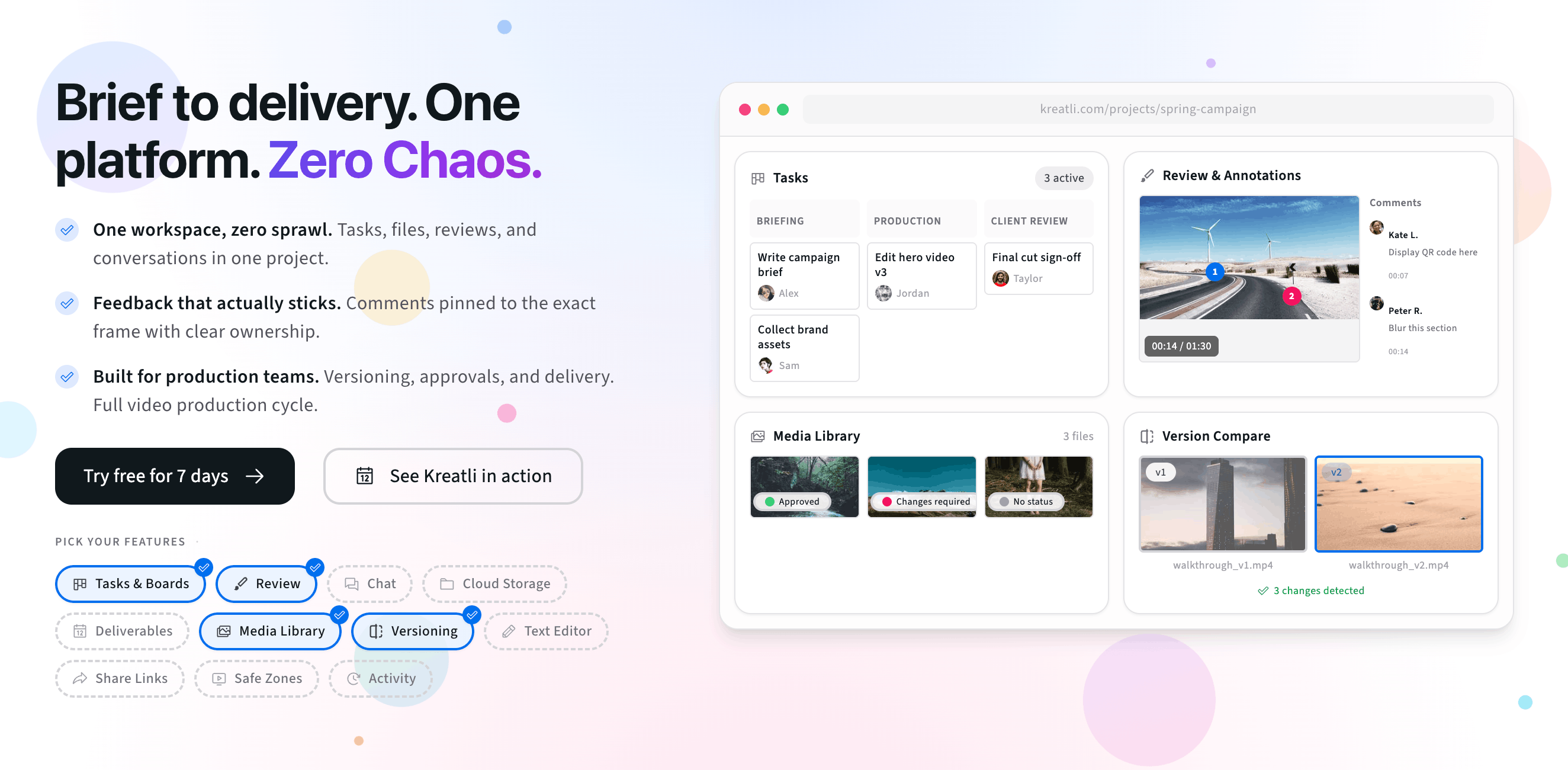
A practical guide for teams reviewing video: draw directly on frames with arrows, boxes, highlights, and freehand markup—then keep those drawings tied to the exact timestamp for faster approvals.
Add drawing to video means reviewers can mark up a frame the same way they would mark up a screenshot: circle what matters, point with arrows, highlight text, and sketch over problem areas. The key is that those drawings stay frame-accurate, so “this part” is never ambiguous.
What does “add drawing to video” mean?
In creative review, “drawing on a video” is visual feedback anchored to the timeline. A drawing isn’t a separate screenshot—it’s markup that shows up on the exact frame where the note was created, alongside a comment that explains the intent.
Arrows and pointers to call out a specific object, layer, or motion path.
Boxes and circles to isolate UI elements, faces, titles, or safe-area issues.
Highlights to mark text, contrast problems, or brand alignment details.
Freehand markup for quick sketches and “move it like this” ideas.
When drawing on video beats text-only comments
Text-only comments work when feedback is simple (“trim 2 seconds at the end”). Drawing is better when the note is spatial, visual, or easy to misunderstand.
Composition changes: “move the logo left” becomes a box around the logo plus an arrow.
Blur and privacy: circle a face or license plate to avoid confusion.
UI and motion: point at the exact element that flickers, overlaps, or animates wrong.
Brand details: highlight typography, spacing, and color inconsistencies quickly.
How to add drawings to a video (step-by-step)
Upload your video to a review workspace (or open the existing cut/version).
Play to the moment that needs changes, then pause on the frame that tells the story.
Draw on the frame using arrows, shapes, highlights, or freehand markup.
Add a short comment explaining the “why” (what to change and what success looks like).
Share a review link so clients and teammates can add drawings and approve without chasing email threads.
If you want the product overview version of this workflow, see Add Drawing To Video.
Best practices: arrows, boxes, colors, and clarity
Use one idea per drawing: too many marks on one frame can create confusion.
Color-code with intent: for example, red = fix, yellow = check, green = approved.
Pair drawings with text: the drawing shows where; the comment explains what and why.
Be frame-accurate: pause on the frame that best represents the issue before marking it up.
Try drawing on a video now
The interactive preview below mirrors a real review flow: upload a clip, scrub to a frame, draw on it, and leave a comment. When you are ready to use this with clients, start a 7-day trial or book a demo.
Upload a video or image to get started
Drag and drop a file here, or click the button below
Free tools, guides, and platform features
Below are free tools that pair with visual video review, plus guides and platform features that help teams keep drawings, feedback, and approvals organized.
Free tools for video teams
Try free tools that complement review-ready links, frame-accurate feedback, and lightweight delivery workflows.
Video Annotator — Add frame-accurate comments, drawings, and markup to video. Pin feedback to exact timestamps and share with clients; recipients do not need a Kreatli account.
Video Feedback Tool — Give frame-accurate feedback on videos with comments, annotations, and markup. Share review links with clients; recipients do not need a Kreatli account.
Video Frame Extractor — Scrub through a video, capture stills as PNG/JPG in your browser—no upload, no watermark. Use without signing in; if you are signed in without an active trial or plan, start a trial or choose a plan to continue.
Video Reviewer — Review videos online with frame-accurate comments, visual annotations, and approval workflows. Share with clients; recipients do not need a Kreatli account.
More guides and examples
Read more about review, approvals, and video annotation workflows.
More resources
Platform capabilities that support annotation, approvals, and secure creative collaboration.
Review & Approval — Frame-accurate revisions and approvals for video content. Streamline your feedback workflow.
Video Annotation — Add frame-accurate annotations, drawings, and markup directly to video frames. Pin comments to exact timestamps and collaborate with precise visual feedback.
Secure Asset Storage — Enterprise-grade storage for creative assets. Organize files, track versions, and protect your media with reliable infrastructure.
FAQ: Add drawing to video
What does “add drawing to video” mean in Kreatli?
In Kreatli, “add drawing to video” means you can draw directly on video frames using arrows, boxes, highlights, and freehand markup that stay attached to the exact frame and timestamp. Instead of describing changes in plain text like “adjust this part around 0:25,” you visually point to the exact area that needs attention so editors and collaborators know what to change.
What kinds of drawing tools can I use on video frames?
You can use freehand drawing, rectangles and circles to highlight regions, arrows and pointers to call out specific elements, and color-coded markup to distinguish different kinds of feedback. Pair drawings with frame-accurate comments so every arrow, box, or highlight has clear written context.
How are drawings linked to timestamps and frames?
Drawings are pinned to an exact frame and timestamp in the video player. When you scrub or play the video, markup appears at the moment it was created and disappears when you move away from that frame range, keeping the timeline readable. Reviewers can jump from a drawing to the exact frame where feedback was given.
Can clients draw on videos without creating an account?
Yes—when you share a guest-friendly review link, external stakeholders can watch, draw on frames, and leave comments without creating an account. This reduces friction while keeping all drawings and feedback attached to the right file and version.
Do drawings stay in sync across new versions of a video?
Kreatli keeps drawings, comments, and approvals organized by version so you always know which feedback belongs to which cut. When you upload a new version, you can compare changes, see what feedback has been addressed, and decide which drawings still apply.
Still have questions?
Reach us at support@kreatli.com and we will help you pick a review setup that fits your team.
Ready to give clear visual feedback?